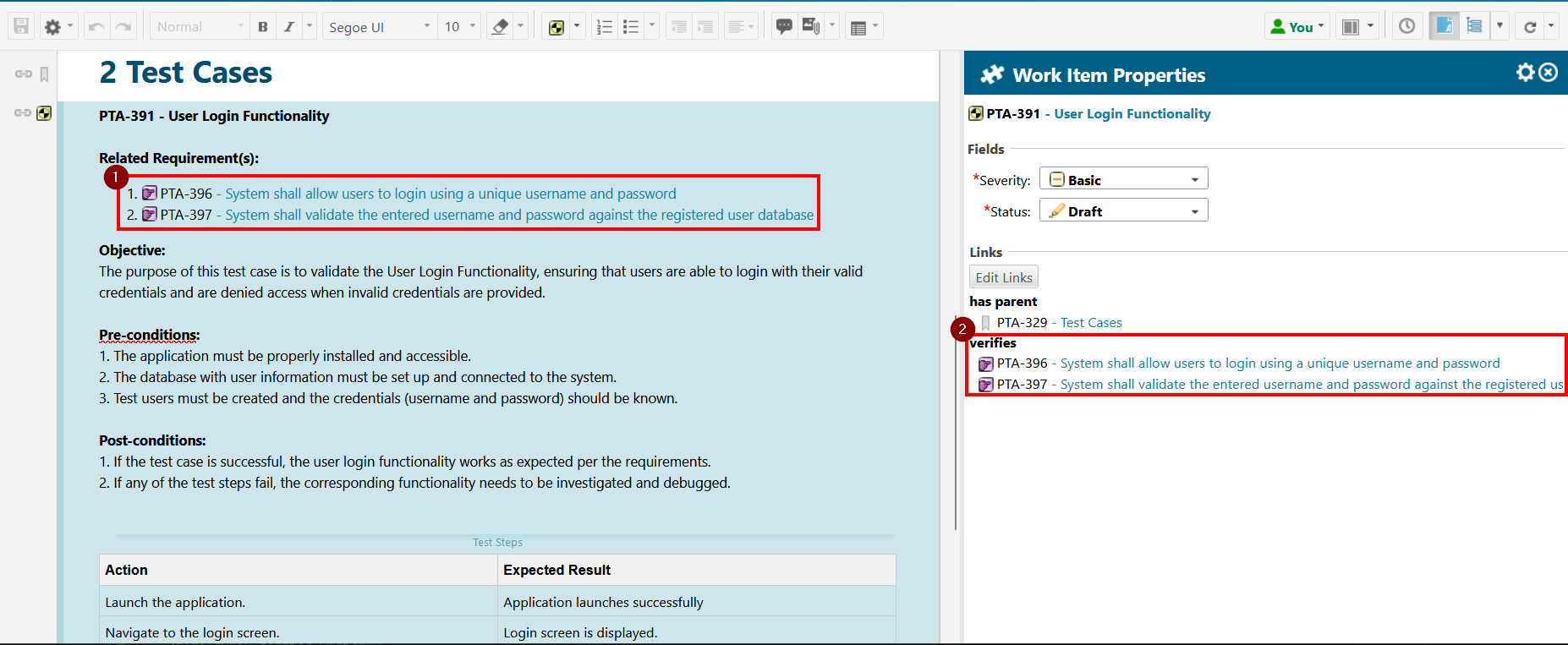
Appearance
Links Synchronizer
The Links Synchronizer (LS) extension will automatically set workitem links for you. It does so by scanning the description of the workitem being saved and ensures that workitems appearing in the description as a Polarion Cross-reference, Polarion Live Link or a Hyperlink will have a corresponding workitem link according to a user-specifiable configuration.
Getting started
There are two options provided by the extension which you can make use of:
- A configuration interface accessible in each Polarion project to specify how the extension should behave for that project. Once a configuration is established, each time a workitem is saved in that project will have its link roles automatically managed according to the configuration.
- A Polarion job to apply the LS configuration across all projects for which the extension is enabled. The main purpose of the job is to apply the LS configuration to all existing workitems that have not had their link roles synchronized yet or when you make updates to the LS configuration.
WARNING
It is strongly recommended that you test this feature in a non-production environment to learn about its behavior. The extension applies changes (adding and removing link roles) spanning multiple workitems, possibly across different projects depending on how the workitems are linked to each other as well as how the extension is configured.
Configuring the LS extension
To enable the extension, you need to create a configuration for their respective project. The configuration interface is accessed in Polarion by visiting the project's administration, then UPPS! Extensions > Links Synchronizer.
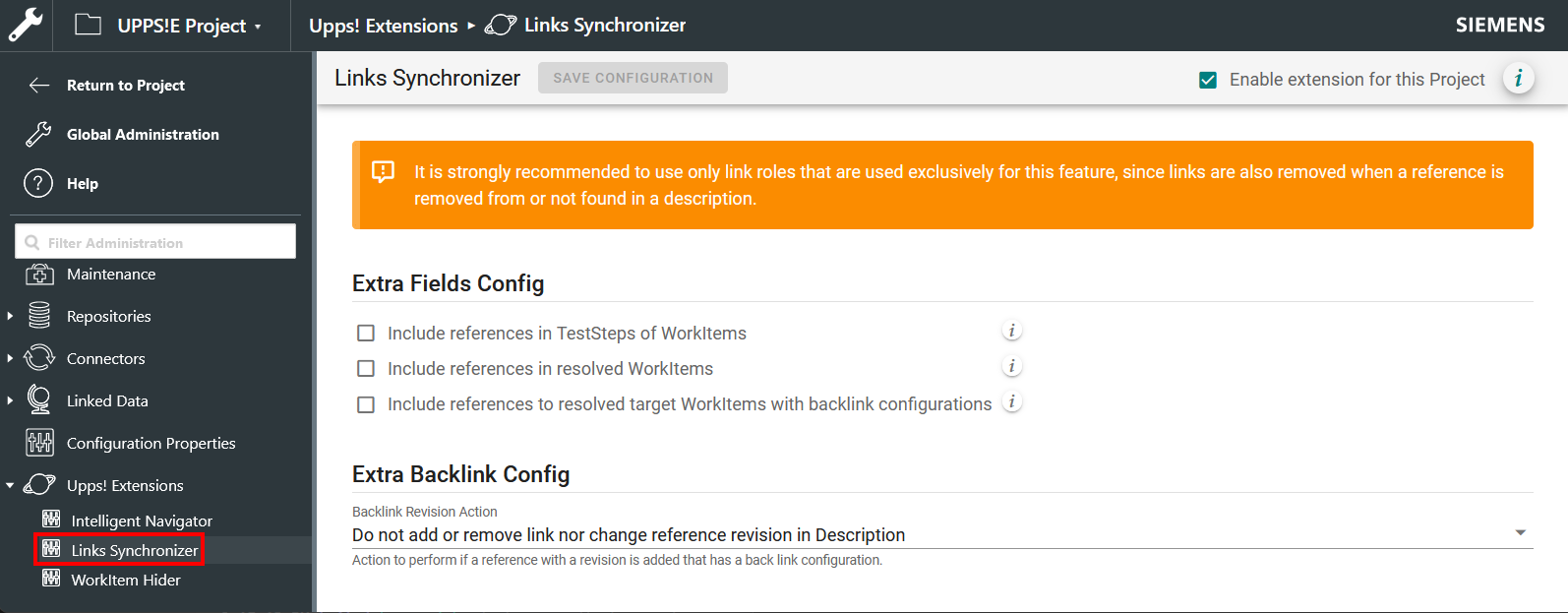
Use the info elements in the administration page like the one indicated in the following in order to learn about the different configuration options and their implications.

Configuring the LS Polarion job
Add following scheduler job configuration through Global Administration > Scheduler and configure as needed.
xml
  <!--
    Processes workitems in all projects with an enabled UPPS!E Links Synchronizer configuration
    to ensure that the workitem links align with the Links Synchronizer configuration.

    Properties:
      - userVaultKey:
          The key identifying a user account in the Polarion user account vault.
          The job will then execute as the specified user.
          Ensure that this user has permission to modify workitems in all projects.

          Possible values: Key of a user specified in the User Account Vault
          Optional: If the job is executed manually through the Polarion Monitor interface.
          Required: If the job is executed automatically via cron-job.

      - batchSize:
          The number of workitems that will be processed before a commit to the svn repository will occur.
          Due to technical circumstances, committing a large amount of changes may render the system unstable or unusable.
          A batch size is therefore specified that will divide workitems changed by the Links Synchronizer into commit groups
          up to a maximum of ${batchSize} workitems.

          Possible values: Any integer greater than 0
          Optional: Default value is 500 workitems.

      - showUpdatedWorkItems:
          Specify whether to explicitly list all workitems in the job log by their id that were updated.
          The job log will print a lucene query with all updated workitems so that you can list them in the workitem tracker.

          Possible values: true or false
          Optional: Default value is false.
  -->
  <job
      disabled="true"
      id="upps.links.synchronizer.job"
      name="UPPS!E Links Synchronizer: Ensure sync"
      scope="system">
      <!-- <userVaultKey></userVaultKey> -->
      <!-- <batchSize>500</batchSize> -->
      <!-- <showUpdatedWorkItems>false</showUpdatedWorkItems> -->
  </job>
Starting the LS Job
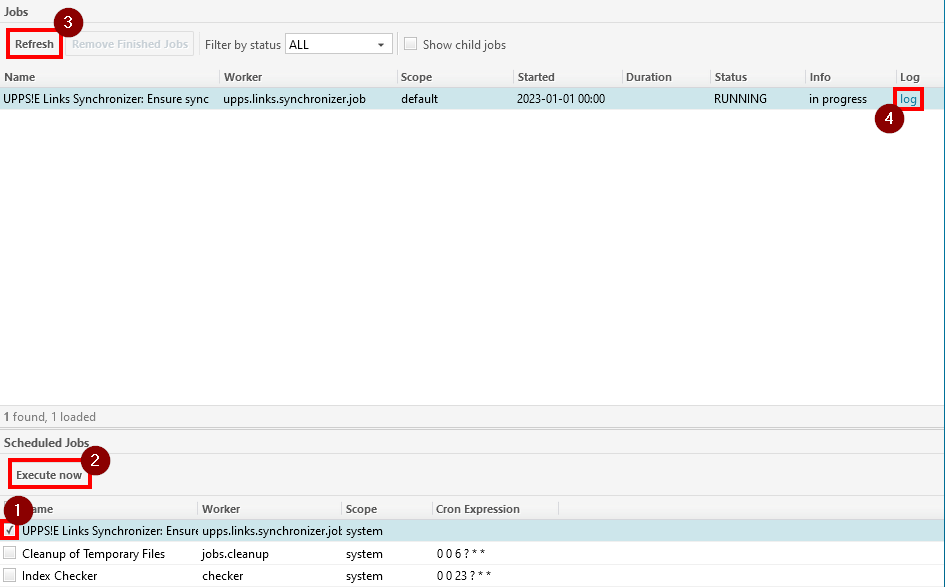
Once you have configured the LS job, following entry is available in the monitor.
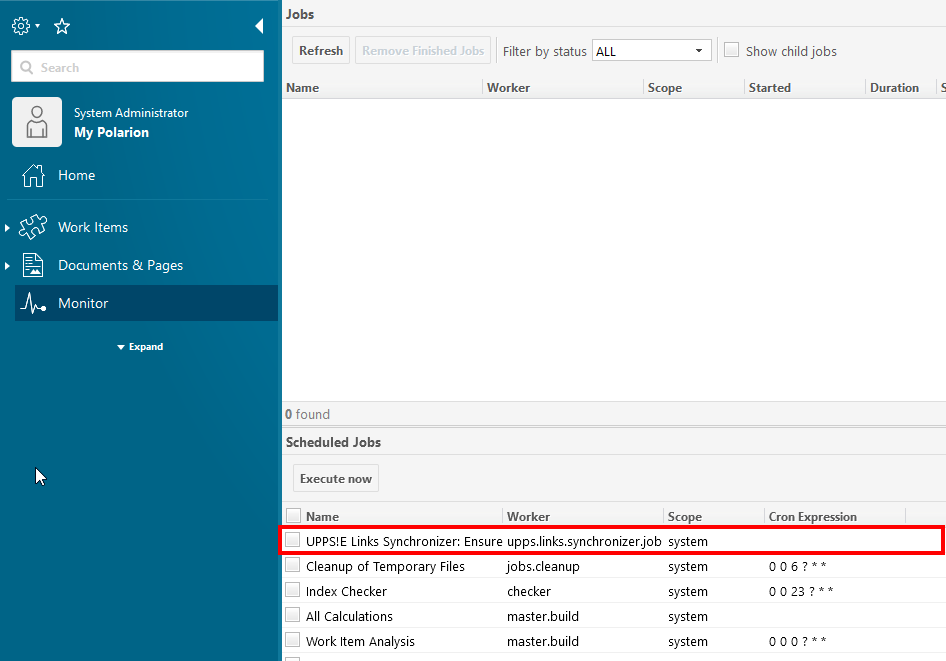
Start the LS job by checking the box next to it (1) and then clicking the Execute now button (2). You may refresh the job view (3) to check the current status of the job. For detailed information about the job process, see the log (4).
INFO
If you did not configure the userVaultKey job property, the job will be run as your logged in user. Changes to workitems and the permission to be able to change those will be evaluated in respect to your user and your permission in each project.
After successful execution of the job, you may review the updated workitems if you have the showUpdatedWorkItems job property enabled. The job log will contain following entry if workitems were updated.
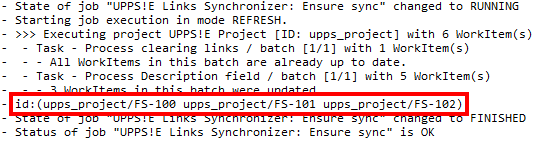
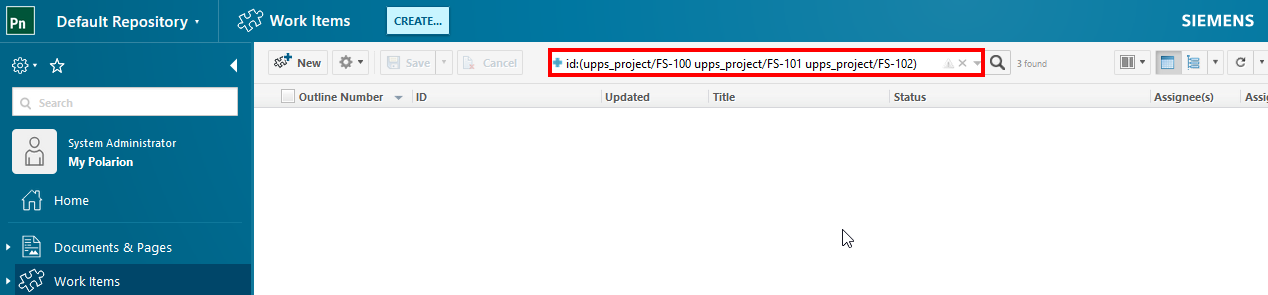
This is a lucene query which you can insert into the Polarion workitem tracker search to to list them in detail.